In Abstract, you can use markdown to format text in a way that is meaningful to you and your team. We’ve compiled a guide on where you can use markdown and what formatting is supported.
Where can I use markdown?
|
Area in Abstract |
MacOS App |
Web App |
|
Project Overview - About section |
✅ |
✅ |
|
Branch summary |
✅ |
|
|
Collection description |
✅ |
✅ |
|
Section within a collection |
✅ |
✅ |
|
Commit description |
✅ |
|
|
Comments on activity in any branch, including the main branch |
✅ |
✅ |
|
Comments on a commit on any branch, including the main branch |
✅ |
✅ |
|
Comments on an artboard in the layer detail view |
✅ |
✅ |
|
Comments on an artboard in presentation mode |
✅ |
✅ |
|
Replying to a comment in the areas listed above |
✅ |
✅ |
|
Branch reviews |
✅ |
✅ |
What markdown is supported?
Formatting options include:
| Format | Markdown |
|
Bold |
**text**, __text__ |
|
Italic |
*text*, _text_ |
|
Underline |
|
|
Strikethrough |
~text~ |
|
Link |
[link title](url) |
|
Heading level 1 |
# SPACE |
|
Heading level 2 |
## SPACE |
|
Heading level 3 |
### SPACE |
|
Bulleted list |
- SPACE |
|
Numbered list |
1. SPACE |
|
Blockquote |
> SPACE |
|
Code block |
`text` |
Headings
Add number signs (#) in front of some text to format it as a heading. The amount of number signs you use matches the heading level you want to create. Alternatively, you can use any number of equal signs (==) or dashes (--) on the line below the text to create H1 and H2 headings.
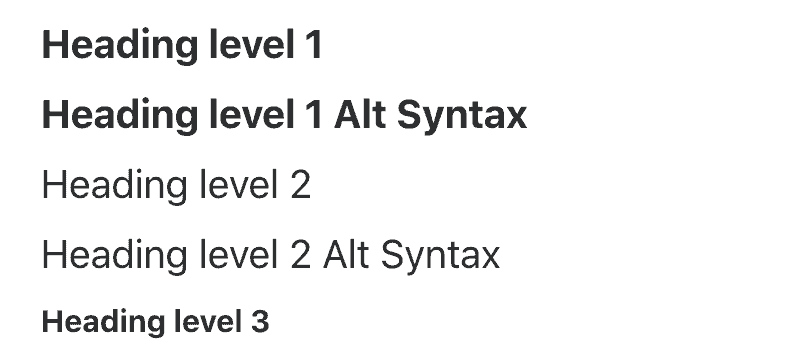
# Heading level 1

Heading level 1 Alt Syntax
===============
## Heading level 2

Heading level 2 Alt Syntax
---------------
### Heading level 3
Paragraph Text
To format paragraph text as bold, italic, bold and italic, or struck-through, use asterisks (*), underscores (_), or tildes (~) as seen below.
Bold

I just love **bold text**.
I just love __bold text__.
Love**is**bold
Italic
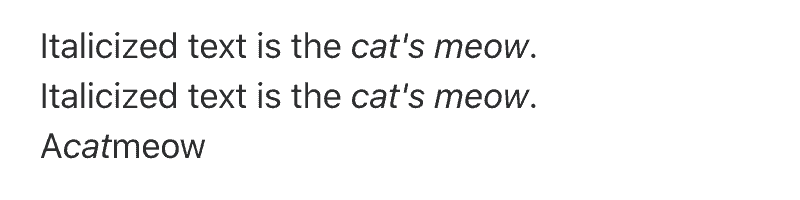
Italicized text is the *cat's meow*.
Italicized text is the _cat's meow_.
A*cat*meow
Bold + Italic
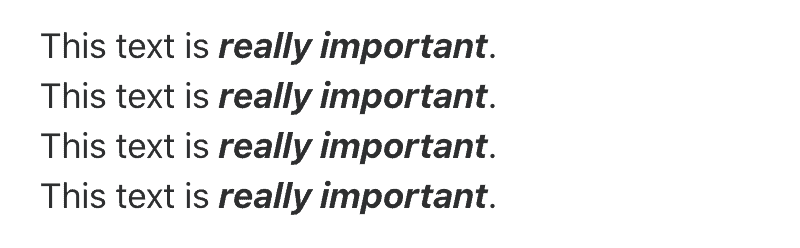
This text is ***really important***.
This text is ___really important___.
This text is __*really important*__.
This text is **_really important_**.
Strikethrough

~~The world is flat.~~ We now know that the world is round.
Blockquotes
Add a greater-than symbol (>) in front of a line of text to create a blockquote. If you need the blockquote to display on multiple lines, include the > symbol on each new line. You can use multiple > symbols to indent text inside the blockquote.
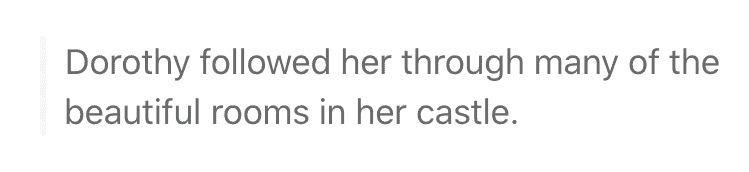
> Dorothy followed her through many of the beautiful rooms in her castle.
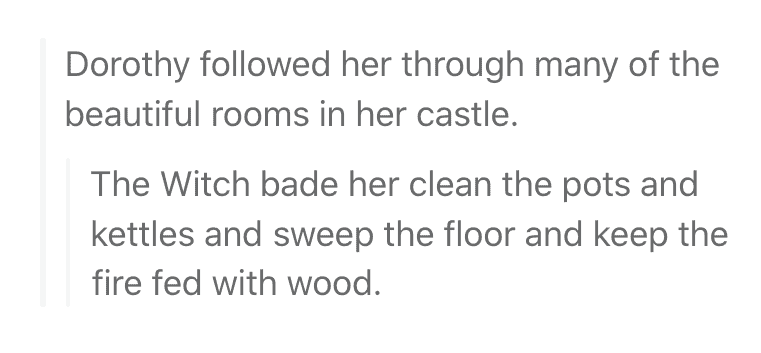
> Dorothy followed her through many of the beautiful rooms in her castle.
>
>> The Witch bade her clean the pots and kettles and sweep the floor and keep the fire fed with wood.
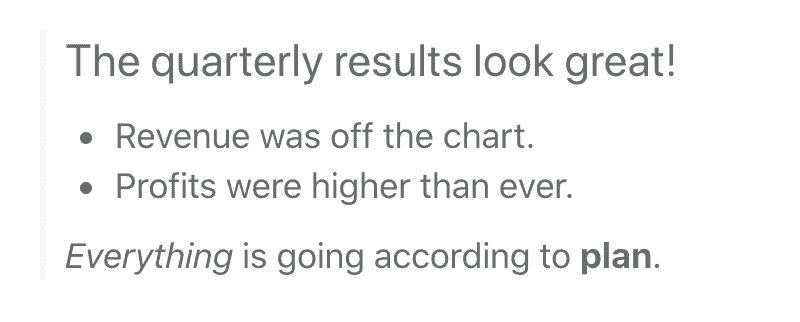
> # The quarterly results look great!
>
> - Revenue was off the chart.
>
> - Profits were higher than ever.
>
> *Everything* is going according to **plan**.
Lists
To create an ordered list, type a number followed by a period (beginning with 1.) and then write the list item. Start a new line for each new item. Use dashes (-) to create unordered lists, and indent using spaces to create tiered lists.
Ordered List
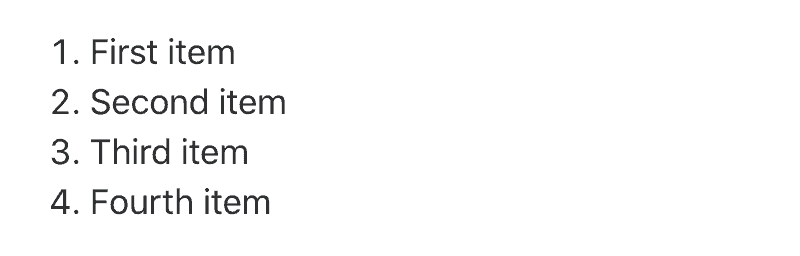
1. First item
2. Second item
3. Third item
4. Fourth item
Unordered List
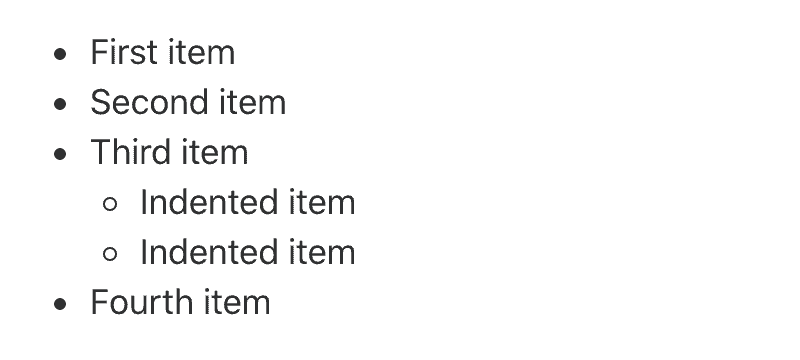
- First item
- Second item
- Third item
   - Indented item
   - Indented item
- Fourth item
Code Related
To signify that a word or phrase is code, surround it with grave accents (`). You can also use this to call special attention to specific text even if it's not code, such as highlighting key terms. Use three grave accents on either side of a long stretch of text to indicate a full code block.

At the command prompt, type `nano`

```
code blocks only work when fenced in, not tabbed
```
Hyperlinks
You can quickly add a link or a mailto redirect in Abstract by surrounding the url or email address with < > symbols. To create a link and hide the url behind a preview title, surround the title with square brackets [ ], immediately followed by the url in parentheses ( ).
You can also combine some of the other text formattings with link formatting to create hyperlinks that are bold, italic, or even appear as code.
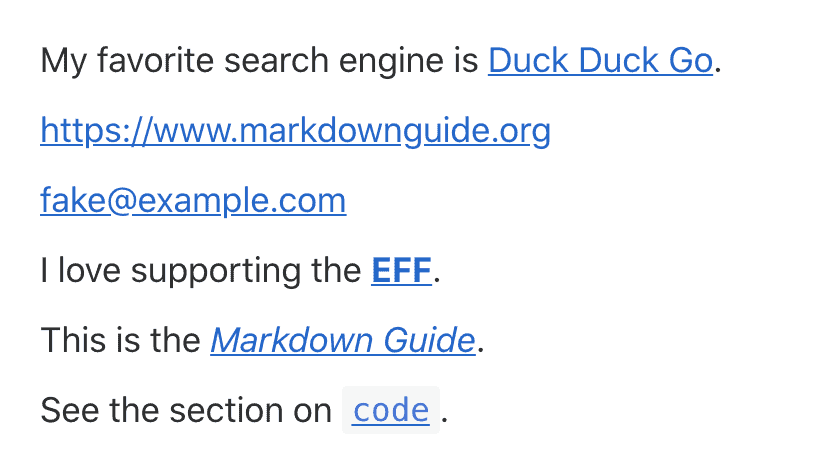
My favorite search engine is [Duck Duck Go](https://duckduckgo.com).
<https://www.markdownguide.org>
<fake@example.com>
I love supporting the **[EFF](https://eff.org)**.
This is the *[Markdown Guide](https://www.markdownguide.org)*.
See the section on [`code`](#code).
Horizontal Rules
Use three or more asterisks (*), dashes (-), or underscores (_) on a single line to create a horizontal rule between text.
***
---
____
Using three dashes “---” directly below text formats that text as an H2 level rather than creating a horizontal rule. To create a horizontal rule instead, either use asterisks or underscores, or add an extra blank line between your text and your horizontal rule.
Images
You can add images to Abstract by using a Markdown format similar to links, with an added exclamation point (!) at the front. Since images are embedded using an URL, the image needs to be hosted externally using a service like Imgur or TinyPic in order to be displayed.


Currently embedded images cannot be zoomed or previewed at full size. Images with text may be difficult to read.